I understand the deep frustration that arises when your creative workflow hits a sudden wall. It is incredibly discouraging when your software fails to communicate with your hardware during a project.
In this guide, I will walk you through the essential steps to identify why your machine remains invisible in the interface. By following these professional troubleshooting techniques, you can systematically eliminate common connection barriers.
My primary goal is to ensure you spend less time debugging technical errors and more time bringing your designs to life. Restoring your machine’s functionality is a straightforward process once you know where to look.
Key Takeaways
- Verify physical cable integrity and port connections.
- Check for necessary driver installations on your computer.
- Ensure the correct COM port is selected within the software settings.
- Restart both the hardware and the application to refresh the handshake.
- Update firmware to maintain compatibility with current software versions.
Initial Hardware and Cable Checks
I find that most troubleshooting lightburn connection issues stem from simple physical failures rather than complex software bugs. Before you adjust any advanced settings, you should verify the physical integrity of your hardware connections. A systematic approach to your physical setup often reveals the root cause of communication errors.
Inspecting USB Cables for Data Integrity
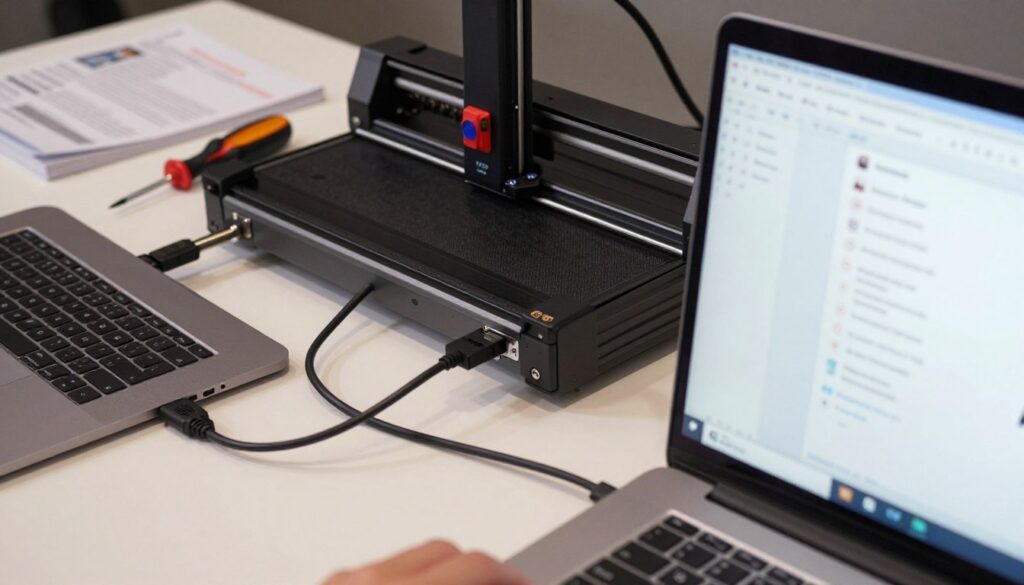
Many users struggle with resolving lightburn USB connectivity issue because they use a cable intended only for charging. These cables often lack the internal wiring required for reliable data transmission. I always recommend using a high-quality, shielded USB cable that is as short as possible to maintain signal strength.
If your cable feels loose at the port, it may have internal damage from repeated bending. You should test a known-working cable from another device to confirm if the original cord is the source of your frustration.
Testing Alternative USB Ports on Your Computer
Not all USB ports on your computer provide the same level of power or data stability. I suggest avoiding front-panel ports on desktop towers, as these often rely on internal extension cables that can introduce signal noise. Instead, plug your laser directly into the rear ports located on the motherboard.
Furthermore, you should avoid using USB hubs or splitters during the initial setup phase. These devices often limit the bandwidth available to your laser controller, leading to intermittent disconnects.
Identifying Power Supply Interference Issues
Electromagnetic interference (EMI) is a silent killer of stable laser communication. If your USB cable runs parallel to high-voltage power cords, the resulting interference can corrupt the data stream. I recommend keeping your USB cable physically separated from your laser’s power supply and motor cables.
If you suspect interference, try moving your computer and laser to a different electrical circuit. This simple test helps determine if “dirty” power or external noise is disrupting your connection.
| Issue Type | Common Symptom | Recommended Action |
|---|---|---|
| Cable Quality | Device not recognized | Replace with shielded data cable |
| Port Limitation | Intermittent drops | Use direct motherboard port |
| EMI Noise | Garbled commands | Separate power and data lines |
| Hub Conflict | Slow response time | Remove USB hubs/splitters |
Verifying USB Drivers and Port Configuration
When your laser engraver remains invisible to your computer, the culprit is frequently a missing or corrupted serial driver. Even if your hardware is physically sound, the issue often lies within the communication bridge provided by your operating system. Properly configured drivers are essential for a stable link between your PC and the controller board.

Installing CH340 and FTDI Serial Drivers
Most laser controllers rely on specific serial chips to translate data from your computer. The two most common chipsets are the CH340 and the FTDI. If these drivers are not installed, your computer will fail to recognize the device entirely.
You should visit the manufacturer’s website to download the latest versions of these drivers. Installing them is a vital step when you need to fix lightburn USB connection problem scenarios. Once the installation is complete, a quick system restart often helps the operating system register the new communication ports.
Checking Device Manager for Unknown Hardware
To see if your computer detects the laser, open the Device Manager on your Windows machine. Look under the “Ports (COM & LPT)” section to see if a new device appears when you plug in your laser. If you see an entry labeled “Unknown Device” or a device with a yellow exclamation mark, your system is struggling to identify the hardware.
This visual confirmation is a key part of resolving lightburn USB connectivity issue cases. If the device is listed but shows an error, it confirms that the physical connection is active, but the software layer is failing. Identifying this status is the first step toward a successful repair.
Updating or Reinstalling Corrupted Driver Files
Sometimes, a driver file becomes corrupted due to an incomplete update or a system glitch. In these instances, you should right-click the device in the Device Manager and select “Update driver.” If that fails, choosing “Uninstall device” and then unplugging and replugging the USB cable will force Windows to reinstall the driver from scratch.
This clean slate approach is often the most effective way to fix lightburn USB connection problem errors. By ensuring the correct drivers are active, you are resolving lightburn USB connectivity issue hurdles that prevent your machine from operating. Keeping your drivers updated ensures that your laser remains responsive and reliable during every project.
How to Fix Lightburn Not Detecting Laser Engraver Over USB via Device Settings
When automatic discovery fails, manual configuration is often the most reliable path forward. If you find that your lightburn laser engraver not being recognized, you do not need to panic. Often, the software simply requires a manual nudge to establish a stable connection with your hardware.
Manually Adding a Laser Device in Lightburn
To begin, open the Devices menu within the software interface. You can select the “Create Manually” option to start the setup process for your specific machine.
Choose your controller type from the provided list, such as GRBL or Ruida. Once selected, you will need to specify the connection type as USB. This manual entry is a proven method for those wondering how to fix lightburn not detecting laser engraver over USB effectively.
Selecting the Correct Communication Protocol
Selecting the right protocol is vital for successful communication. Your controller speaks a specific language, and choosing the wrong one will prevent the software from sending commands.
“Precision in configuration is the bridge between a simple idea and a perfectly executed project.”
Ensure that you match the protocol exactly to your controller’s firmware. If you are unsure, check your manufacturer’s documentation to confirm whether your board uses GRBL, Smoothieware, or Ruida protocols.
Verifying the Laser Origin and Workspace Dimensions
After establishing the connection, you must verify your workspace settings. Incorrect dimensions can lead to framing errors or the software failing to recognize the machine’s boundaries.
Check these specific settings to ensure your lightburn laser engraver not being recognized issue is fully resolved:
- Workspace Width and Height: Input the exact physical limits of your laser bed.
- Origin Point: Set the origin to match your machine’s home position, typically found at the front-left or rear-left corner.
- Auto-Home: Enable this feature if your machine supports it to ensure the software knows exactly where the laser head is located.
By taking these steps, you provide the software with the necessary data to operate safely. This level of detail is exactly how to fix lightburn not detecting laser engraver over USB when standard troubleshooting steps fall short.
Troubleshooting Serial Port Conflicts and Baud Rates
When your laser engraver fails to respond, the culprit is often a mismatch in communication settings. I frequently see cases where lightburn won’t detect laser engraver over USB because the software and the controller are not speaking the same language. Precise timing and specific data speeds are required to maintain a stable connection.
Matching Baud Rates Between Controller and Software
The baud rate acts as the speed limit for your data transmission. If your controller is set to 115,200 bits per second but your software expects 9,600, the connection will drop or produce garbled commands. You must ensure these values align perfectly within your device settings.
To verify this, check your controller’s documentation or firmware configuration. Once you identify the correct rate, update the setting in your software to match it exactly. Consistency is the key to preventing communication errors during complex engraving tasks.
Resolving COM Port Conflicts with Other Software
Sometimes, another application on your computer might be hogging the COM port your laser needs. This is a common hurdle when troubleshooting lightburn connection issues. If a 3D printer slicer or another laser control program is running in the background, it may lock the port, preventing your laser from connecting.
- Close all other software that utilizes serial communication.
- Restart your computer to clear any hung background processes.
- Check your Device Manager to see if the COM port is being actively used by another driver.
Using the Find My Laser Feature
If you are still having trouble, the built-in automated tools can save you significant time. The “Find My Laser” feature is designed to scan all available USB ports on your computer to identify the correct handshake protocol. This is often the most effective method for troubleshooting lightburn connection issues when manual settings fail.
Simply click the “Find My Laser” button in the device setup menu and wait for the software to query your hardware. If the system detects your controller, it will automatically suggest the correct port and baud rate. This automated handshake usually resolves most persistent connectivity problems instantly.
Managing Operating System Permissions and Security
Sometimes, the very tools designed to protect your PC are the ones causing your Lightburn connection issues. Modern operating systems often act as strict gatekeepers that might block your laser software from communicating with hardware. If you are struggling to fix lightburn USB connection problem, your security software might be the hidden barrier.
Adjusting Windows Firewall and Antivirus Exceptions
Windows Defender or third-party antivirus suites can occasionally flag serial communication as a potential threat. To ensure your software functions correctly, you should add an exception for the Lightburn executable file. This simple step often resolves cases where lightburn won’t detect laser engraver over USB due to aggressive network filtering.
Granting Administrative Access to Lightburn
Running the application with elevated privileges can bypass certain restrictions imposed by the operating system. By right-clicking the Lightburn icon and selecting “Run as administrator,” you provide the software with the necessary permissions to access hardware ports directly. This is a highly effective method to stabilize your connection.
Handling macOS Privacy and Security Settings
Apple computers utilize robust privacy controls that require explicit permission for software to interact with external devices. You must navigate to the “Security & Privacy” tab in your System Settings to ensure Lightburn has the required access. Without these permissions, the system may block the serial port, making it impossible to establish a link.
| Operating System | Primary Security Barrier | Recommended Action |
|---|---|---|
| Windows 10/11 | Firewall/Antivirus | Add Application Exception |
| macOS | Privacy/Input Monitoring | Grant Hardware Permissions |
| All Systems | User Account Control | Run as Administrator |
By carefully managing these settings, you ensure that your computer remains secure while allowing your laser to operate without interruption. Addressing these permission conflicts is a vital part of the troubleshooting process for any laser enthusiast.
Advanced Firmware and Controller Diagnostics
When standard troubleshooting steps fail, the issue might be buried deep within your laser controller’s firmware. If your lightburn laser engraver not being recognized despite your best efforts, the internal logic of the board may have become unstable. I recommend looking at these advanced diagnostic paths to restore communication.
Checking for Corrupted GRBL or Ruida Firmware
Firmware corruption often manifests as erratic machine behavior or a complete failure to handshake with your computer. If the controller stops responding to commands, the firmware might need a clean re-installation. You should download the official firmware file from your manufacturer’s website to ensure compatibility.
Carefully follow the manufacturer’s flashing instructions to avoid bricking your controller. A successful re-flash often clears out hidden errors that prevent the system from establishing a stable link. This process is a reliable way to resolve a persistent troubleshooting lightburn USB connection error.
Resetting the Laser Controller to Factory Defaults
Sometimes, custom settings or accidental configuration changes create a conflict that prevents the software from seeing the hardware. Performing a factory reset clears the controller’s memory and returns it to its original state. This action is highly effective for removing ghost settings that interfere with USB communication.
Consult your user manual to find the specific reset command for your controller model. For many GRBL boards, this involves sending a specific command string through the console. Once the reset is complete, you will need to re-configure your workspace dimensions and origin settings.
Testing Connectivity with Alternative Laser Software
If you are still struggling with a lightburn laser engraver not being recognized, you must determine if the problem is software-specific. I suggest installing a secondary program like LaserGRBL for GRBL machines or RDWorks for Ruida controllers. These tools act as a neutral diagnostic platform to verify if the hardware is functional.
If the alternative software connects without issue, the problem likely lies within your specific software configuration. However, if the machine remains invisible to all programs, you are likely dealing with a hardware-level communication failure. This troubleshooting lightburn USB connection error strategy helps you isolate the root cause quickly and efficiently.
Conclusion
Mastering the technical side of your equipment allows you to focus on your creative projects. By systematically checking your hardware, drivers, and software settings, you can resolve almost any connectivity issue preventing your laser from working.
I have outlined the most effective methods to ensure your machine is recognized and ready for your next project. Performing these steps helps you master the process of troubleshooting lightburn USB connection error issues with precision.
If you have followed these steps and still face challenges, I recommend reaching out to your laser manufacturer’s support team for further assistance. Brands like xTool, Ortur, and Atomstack provide dedicated resources to help users overcome persistent hardware hurdles.
I hope this guide has helped you get back to your engraving work with confidence and ease. Consistent maintenance and proactive troubleshooting lightburn USB connection error habits will keep your studio running smoothly for years to come.