Precision is the hallmark of professional craftsmanship. When your machine produces distorted patterns, it can be incredibly frustrating. I understand that laser engraving troubleshooting is often a complex task that requires patience and a sharp eye for detail.
In this guide, I will walk you through the essential steps to resolve alignment issues that often plague your projects. Whether the problem stems from hardware wear or software misconfiguration, a systematic approach is your best path forward.
By following my professional methodology, you will learn exactly how to fix laser engraver lines not aligning. My goal is to help you restore precision to your equipment so your designs come out perfectly every time. Let’s get your machine back to peak performance.
Key Takeaways
- Identify if the issue is mechanical or software-based.
- Check belt tension for signs of slack or wear.
- Verify that your gantry is square and level.
- Review software settings for resolution and speed errors.
- Perform regular maintenance to ensure long-term accuracy.
Understanding the Root Causes of Misalignment
When your laser engraver begins producing skewed lines, the first step is to diagnose the underlying source of the error. Effective laser engraving troubleshooting requires a calm, systematic approach to isolate whether the problem is physical or digital. By identifying the root cause early, you avoid unnecessary adjustments to parts that are already functioning correctly.
Identifying Mechanical vs. Software Issues
Mechanical issues typically manifest as consistent, repetitive shifts in a single direction. If your machine skips steps or produces jagged edges, you are likely dealing with loose belts or slipping pulleys. These physical faults often create a noticeable pattern that repeats across every project you run.
Conversely, software errors often appear as scaling inaccuracies or coordinate offsets. If your design looks perfect on the screen but prints at the wrong size or position, the issue usually lies within your firmware or design software settings. Distinguishing between these two categories is the most important step to fix laser beam drift before you start taking your machine apart.
Common Signs of Laser Beam Drift
I often look for specific visual cues to determine if the laser path has drifted during operation. One common sign is a gradual “stair-stepping” effect on diagonal lines that should be perfectly smooth. This often indicates that the carriage is struggling to maintain its intended trajectory due to mechanical resistance.
Another indicator is when the laser fails to return to the exact home position after a job finishes. If you notice your engravings shifting slightly with each pass, you must act quickly to address the instability. Learning to recognize these signs early will help you fix laser beam drift and maintain the high precision your projects demand.
Inspecting and Tightening Drive Belts
When your laser engraver starts producing jagged lines, the first place I look is the drive belt system. Loose or uneven belts are the most frequent culprits behind poor registration and inconsistent engraving paths. Prioritizing laser engraver maintenance ensures that your machine operates with the precision required for high-quality projects.
Checking Tension on X and Y Axis Belts
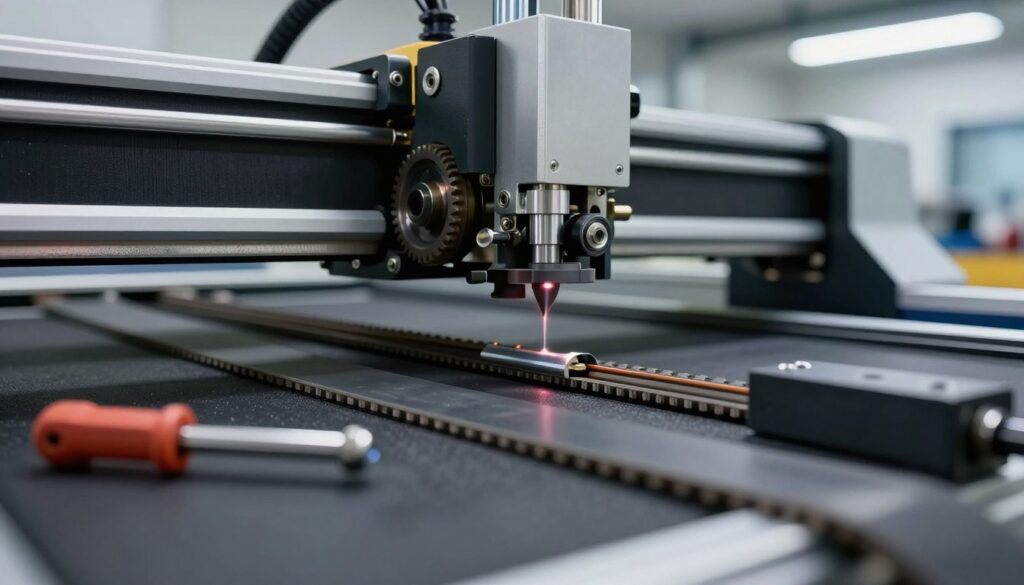
To check your laser belt tension, I recommend a simple “pluck” test. Gently press down on the belt; it should have a slight amount of give, similar to a guitar string, without feeling slack or overly rigid. If the belt feels too loose, it will likely skip teeth during rapid movements, causing your lines to shift unexpectedly.
I always verify that both the X and Y axes have uniform tension. If one side is tighter than the other, the carriage will pull at an angle, leading to distorted shapes. You can adjust the tension by loosening the mounting screws on the idler pulley and sliding it until the belt is taut.
Adjusting Pulley Alignment for Smooth Movement
Even with perfect tension, misaligned pulleys can cause the belt to rub against the frame. This friction creates drag, which slows down your motor and ruins the accuracy of your engraving. I make sure that the belt runs perfectly centered through the teeth of the pulley to prevent premature wear.
If you notice the belt drifting to one side, check the pulley set screws. A loose pulley can shift along the motor shaft, causing the belt to track poorly. Tightening these screws ensures that the movement remains smooth and linear across the entire workspace.
Replacing Worn or Damaged Timing Belts
Over time, even the best belts will show signs of fatigue. If you see fraying edges, missing teeth, or visible cracks, it is time for a replacement. Continuing to use a damaged belt will eventually lead to total failure during a long job, which can ruin your material.
When replacing these components, I suggest choosing high-quality reinforced rubber belts that match your original specifications. Proper installation is key to restoring factory-level performance and maintaining the structural integrity of your machine.
| Symptom | Potential Cause | Recommended Action |
|---|---|---|
| Jagged lines | Loose belt tension | Tighten idler pulley |
| Belt fraying | Pulley misalignment | Realign and replace |
| Skipped steps | Stretched timing belt | Install new belt |
| Grinding noise | Debris in teeth | Clean and inspect |
Calibrating the Laser Head and Carriage
I often find that mechanical instability is the hidden enemy of crisp, clean laser lines. A wobbly laser head will inevitably lead to blurry or misaligned output during the engraving process. Performing a thorough laser carriage calibration is the most effective way to restore precision to your machine.
Ensuring the Carriage Rails are Level
The foundation of any high-quality engraving lies in perfectly level rails. If your rails are uneven, the laser head will struggle to maintain a consistent distance from the material surface. Consistency is key when you want to achieve uniform depth across your entire workspace.
I recommend using a precision spirit level to check both the X and Y axes. If you notice any tilt, adjust the mounting screws on the frame until the rails sit perfectly flat. This simple step is a vital part of routine laser engraver maintenance that prevents long-term wear.
Tightening Eccentric Nuts on V-Slot Wheels
Most modern engravers utilize V-slot wheels that glide along the aluminum extrusions. Over time, these wheels can develop play, which causes the carriage to shake during rapid movements. You can easily fix this by adjusting the eccentric nuts located on the underside of the carriage plates.
Rotate the nut slowly until the wheel makes firm contact with the rail. You should be able to spin the wheel with your finger, but it should not wobble or slide freely. Tightening these components ensures that your laser head moves with absolute accuracy.
Verifying the Laser Module is Securely Mounted
Even if your rails are perfect, a loose laser head will ruin your work. I always check that the laser module mounting is rigid and free of any vibration. Even a slight movement in the bracket can cause significant deviations in the beam path during high-speed operations.
Ensure all mounting bolts are tightened securely to the carriage plate. If you notice any rattling, consider adding a small washer or a locking nut to keep the assembly firm. By securing these mechanical elements, you create a stable foundation for all your future engraving tasks.
How to fix laser engraver lines not aligning through mirror calibration
Mastering the art of optical calibration is the most effective way to ensure your laser beam hits the center of the lens every time. When your machine fails to produce crisp lines, the issue often lies within the path of the beam itself. Precision is non-negotiable when working with CO2 laser systems.
Performing the Thermal Paper Test
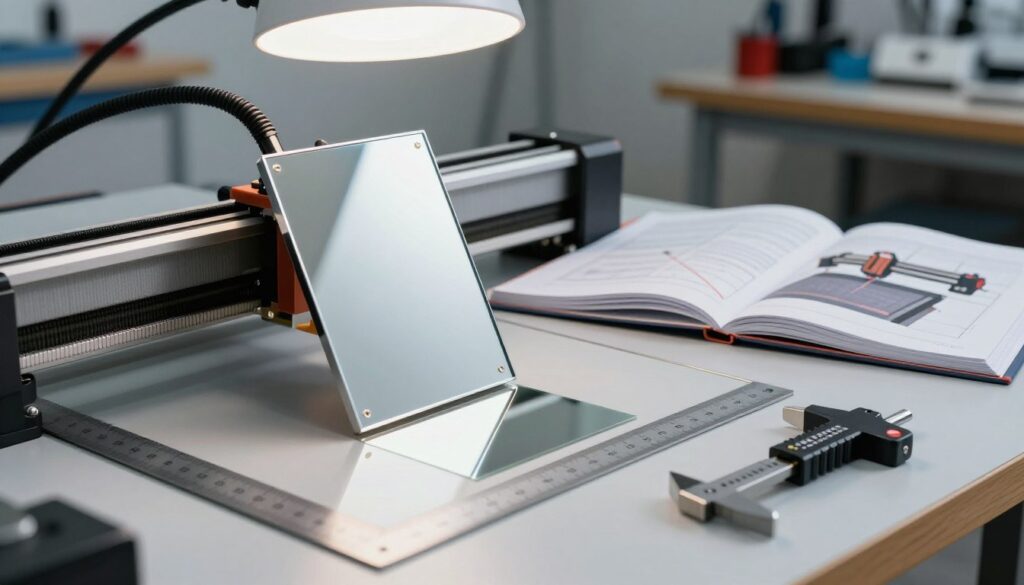
To visualize where your beam is actually traveling, I recommend using the thermal paper test. Place a small piece of thermal paper over the mirror or lens aperture and fire a very short, low-power pulse. This creates a distinct mark that reveals exactly where the beam strikes the surface.
If the mark is not centered, you have identified a clear point of failure in your optical train. Consistency is key, so repeat this test at different points along the X and Y axes to see if the beam drifts as the carriage moves.
Adjusting Mirror Angles for Beam Centering
Once you have identified the drift, you must use a reliable mirror alignment guide to make incremental adjustments. Most mirror mounts feature three adjustment screws that allow you to tilt the mirror slightly. I suggest making very small turns, as even a quarter-turn can significantly shift the beam path.
Always verify your progress by running another thermal paper test after each adjustment. By systematically aligning each mirror in the sequence, you ensure the beam remains centered throughout the entire travel area of the machine.
Checking the Focus Lens for Proper Seating
After the mirrors are calibrated, you must inspect the laser focus lens to ensure it is seated correctly. If the lens is tilted or loose, the beam will exit at an angle, causing distorted or doubled lines. Carefully remove the lens housing and check that the O-ring is properly positioned to hold the glass steady.
Finally, inspect the surface of the laser focus lens for any dust or debris. Even microscopic particles can scatter the beam, leading to poor engraving quality. Keeping your optics clean and securely mounted is the secret to achieving sharp, professional results every time you engrave.
Optimizing Software Settings and Firmware
I often find that the root of engraving misalignment lies within the digital communication between your computer and the laser controller. Even when your mechanical components are perfectly tuned, incorrect laser software settings can cause the machine to misinterpret coordinates. By refining these digital parameters, you can ensure that your laser follows the intended path with absolute precision.
Adjusting Acceleration and Speed Parameters
High-speed engraving is a common goal, but pushing your machine beyond its physical limits often leads to skipped steps. When the acceleration is set too high, the motors may struggle to keep up with the rapid changes in direction. This results in the laser head lagging behind the software’s command, causing lines to shift or blur.
To prevent this, I recommend the following adjustments:
- Lower your acceleration values in the machine settings to allow the motors more time to ramp up.
- Reduce the maximum travel speed to maintain consistent torque during complex vector cuts.
- Test your settings with a simple square pattern before running large, intricate projects.
Updating Firmware to Resolve Communication Errors
Persistent communication errors between your computer and the laser controller often stem from outdated firmware. Manufacturers frequently release updates that improve how the controller interprets G-code instructions. If your machine seems to “forget” its position or stutters during operation, a firmware update is likely the solution.
Always back up your current configuration before flashing new firmware to your board. This ensures that you can revert to a stable state if the update process encounters any unexpected issues. Keeping your controller current is a crucial step for maintaining long-term reliability.
Calibrating Steps Per Millimeter in LightBurn or LaserGRBL
If your engraving dimensions do not match your digital design, you likely need to perform a calibration of your steps per millimeter. This process ensures that the software sends the correct number of pulses to the stepper motors for every millimeter of movement. Whether you are performing a LightBurn calibration or a LaserGRBL alignment, the core principle remains the same.
Follow these steps to achieve accurate movement:
- Measure the actual distance the laser head travels versus the distance commanded by the software.
- Calculate the error ratio to determine the necessary adjustment for your motor drivers.
- Update the $100, $101, or $102 parameters in your controller settings to reflect the new values.
Taking the time to dial in these specific values will eliminate scaling errors in your work. Once these settings are locked in, your machine will translate your digital designs into physical reality with unmatched accuracy.
Testing and Fine-Tuning Your Engraving Results
I always perform a final validation process to ensure my laser is cutting accurately. After completing mechanical or software repairs, verifying the machine’s output is the only way to confirm that you have successfully learned how to fix laser engraver lines not aligning. This phase transforms your repair efforts into consistent, high-quality production.
Running a Grid Alignment Test Pattern
The most effective method for verification is the laser engraving grid test. I recommend creating a simple file containing a series of horizontal and vertical lines spaced exactly ten millimeters apart. By engraving this pattern onto a piece of scrap material, you can quickly visualize any remaining inconsistencies in your machine’s movement.
If the lines appear wavy or fail to intersect at perfect right angles, your machine still requires attention. A clean, sharp grid is the gold standard for achieving professional laser engraving accuracy. I use this test as my primary benchmark before starting any complex project.
Analyzing Offset Errors in Vector Cuts
Once the grid is complete, I inspect the vector cut offset by examining the start and end points of each line. If the laser beam does not close the loop perfectly, it indicates that the carriage or the software parameters are still slightly off. You should look for gaps or overlapping lines that suggest mechanical play or timing belt slack.
Comparing these results against your initial baseline helps identify if the issue is isolated to a specific axis. If the error only appears on the X-axis, you can narrow your focus to that specific drive system. This systematic analysis prevents unnecessary adjustments to parts that are already functioning correctly.
Making Micro-Adjustments Based on Test Results
When I notice minor discrepancies, I perform small, incremental changes to my settings. Whether it is tightening a tensioner by a quarter turn or adjusting the acceleration values in my software, precision is key. I always document these changes to track how they impact the final output.
| Observation | Likely Cause | Recommended Action |
|---|---|---|
| Lines are jagged | Loose belt tension | Tighten X/Y belts |
| Offset at corners | Mechanical backlash | Check V-slot wheels |
| Blurred edges | Focus misalignment | Adjust lens height |
| Inconsistent spacing | Step calibration | Update firmware steps |
By following this rigorous testing cycle, I ensure my equipment remains in peak condition. Consistent maintenance and testing are the best ways to maintain laser engraving accuracy over the long term. With these final tweaks, your machine will be ready for high-precision work.
Conclusion
Achieving perfect alignment on your laser engraver is a vital skill for every maker. I designed this guide to help you gain full control over your machine performance. You now possess the technical knowledge to troubleshoot mechanical drift and software calibration errors with ease.
Consistent maintenance remains the best way to protect your investment in brands like xTool, Ortur, or Glowforge. I suggest you create a recurring schedule for checking your belts and mirror optics. Small adjustments made today prevent costly repairs in the future.
Precision engraving relies on your ability to spot subtle shifts in the laser path. Keep your workspace clean and your firmware updated to ensure smooth operation. I hope these steps empower you to produce high-quality projects without the frustration of misaligned cuts.
Share your progress or reach out if you encounter unique challenges with your specific hardware setup. Your commitment to machine care ensures that your laser engraver delivers professional results for many years. Happy creating as you continue to refine your craft.