Have you ever finished a project only to notice faint, double-imaged shadows marring your design? These unwanted marks often appear as subtle artifacts that ruin the professional aesthetic of your work. I understand the frustration of seeing your hard work compromised by these persistent errors.
In this guide, I will walk you through the essential steps to identify and resolve these issues. By following my systematic approach, you will learn how to fix ghosting lines on laser engraving fills quickly and effectively. My goal is to help you regain precision and confidence in your machine operations.
Precision is the hallmark of quality craftsmanship. When your equipment performs at its peak, your output reflects that excellence. Let’s dive into the technical adjustments required to restore your workflow to its original, high-quality standard.
Key Takeaways
- Identify the root causes of double-imaged shadows in your designs.
- Adjust belt tension and carriage stability to improve output quality.
- Optimize software settings to prevent common mechanical artifacts.
- Perform routine maintenance to ensure long-term machine accuracy.
- Restore professional aesthetics to your finished material projects.
Understanding the Causes of Ghosting
I have found that identifying the root cause of ghosting is the most critical step in the repair process. When you engage in laser engraving troubleshooting, you must first look at the patterns left on your material. These artifacts often appear as faint, repeating lines that ruin the clean look of a solid fill.
Identifying the Visual Signs of Ghosting
When troubleshooting laser engraving ghosting, the first thing I look for is the consistency of the error. Ghosting usually manifests as a secondary, lighter image that trails behind the primary engraving path. You might notice these lines appearing specifically at the start or end of a scan line.
To identify these issues, keep an eye out for the following visual cues:
- Double-imaging: A faint shadow of the design offset by a fraction of a millimeter.
- Jagged edges: Lines that appear wavy instead of crisp and straight.
- Inconsistent fill density: Areas where the laser power seems to fluctuate during a single pass.
Common Mechanical and Software Triggers
The process of troubleshooting ghosting in laser engraving fills requires you to distinguish between hardware limitations and digital errors. Often, the issue stems from a physical component struggling to keep up with the speed of the laser head. If your belts are loose or your rails are dirty, the carriage may vibrate, causing the laser to fire slightly off-target.
However, software settings can be just as problematic as mechanical wear. If your scan gap is too wide or your acceleration settings are too aggressive, the controller may struggle to maintain precision. I recommend checking these common triggers to narrow down your search:
- Mechanical: Worn-out belts, loose pulleys, or debris on the linear rails.
- Software: Incorrect DPI settings, high-speed scan gaps, or buffer lag during complex vector fills.
- Electrical: Signal interference or unstable power supply to the stepper motors.
How to Fix Ghosting Lines on Laser Engraving Fills
If you are struggling with blurry edges or double images, this guide provides the exact steps to restore your machine’s precision. Learning how to fix ghosting lines on laser engraving fills is a vital skill for any operator aiming for professional results. I recommend a methodical approach that addresses both the physical mechanics and the digital parameters of your laser system.
“Precision is not an act, but a habit formed by the constant calibration of your tools.”
By following this workflow, you can effectively eliminate unwanted artifacts and improve your output quality. Let us begin by inspecting the core components that dictate motion accuracy.
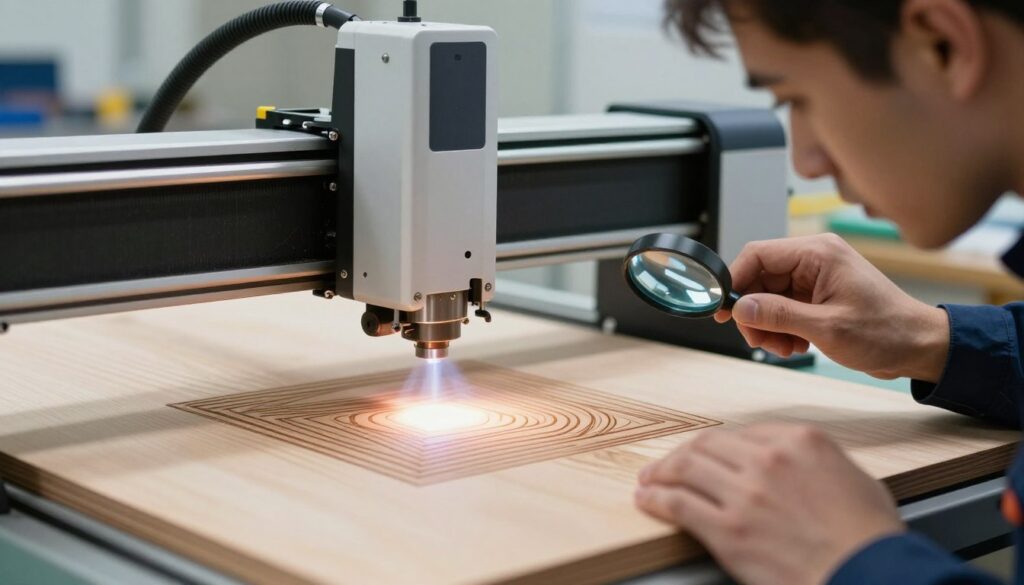
Step 1: Checking Belt Tension and Pulley Alignment
The most common way to fix ghosting on laser engraving is to ensure your drive belts are properly tensioned. If a belt is too loose, the laser head may overshoot its target, causing a visible shadow or ghosting effect on the fill. Conversely, belts that are too tight can strain the stepper motors and cause erratic movement.
Check your pulleys to ensure they are perfectly aligned with the belt path. Even a slight misalignment can cause the belt to track poorly, leading to inconsistent engraving lines. Always verify that the set screws on your pulleys are tight to prevent any slippage during high-speed operations.
Step 2: Verifying Laser Head Stability
Once the belts are secure, you must examine the laser head carriage for any physical play. A loose carriage will wobble during rapid direction changes, which is a frequent cause of ghosting. I suggest gently rocking the laser head assembly to feel for any movement against the rails.
If you detect any looseness, adjust the eccentric nuts on your V-wheels or tighten the rail mounting bolts. A stable carriage is essential for maintaining a consistent focal point and preventing vibration-induced artifacts. Ensuring this stability is a critical step in your overall maintenance routine.
Step 3: Adjusting Scan Gap and Over-scan Settings
When hardware is solid, the next logical laser engraving ghosting solution involves fine-tuning your software settings. The scan gap determines the distance between each pass of the laser; if this value is too large, it can create the appearance of gaps or ghosting lines. Reducing the scan gap often results in a much smoother, more solid fill.
Additionally, check your over-scan settings to ensure the laser has enough room to decelerate and accelerate at the end of each line. Without proper over-scan, the laser may fire while the head is changing direction, leading to dark, blurry edges. Adjusting these parameters allows your machine to operate with greater control and consistency.
Mechanical Adjustments for Better Precision
Mechanical precision serves as the backbone for every high-quality project I produce. When my machine lacks physical stability, the resulting artifacts can ruin an otherwise perfect design. By focusing on these core hardware elements, I can effectively reduce ghosting in laser engraving and restore clarity to my work.
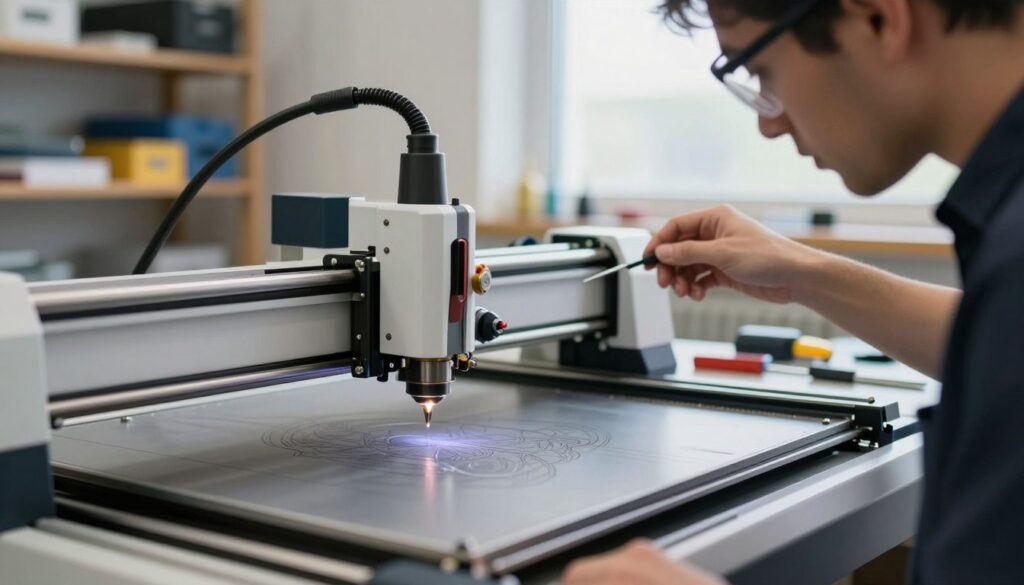
Tightening X and Y Axis Belts
Loose belts are a common culprit when I notice shifting or double lines in my fills. I always ensure that my belts have enough tension to prevent backlash, which occurs when the motor moves but the belt slips slightly. If the belt feels like a loose guitar string, it is time to tighten it until it produces a clear, firm note when plucked.
Inspecting Rail Cleanliness and Lubrication
Dust and debris on the rails create friction that causes the laser head to stutter during high-speed movements. I make it a habit to wipe down my rails with a lint-free cloth before every major project. Applying a light, machine-grade lubricant ensures the carriage glides smoothly, which is a vital step in troubleshooting laser engraving ghosting.
Ensuring the Laser Carriage is Secure
Even with tight belts, a loose carriage assembly can introduce unwanted vibrations. I regularly check the eccentric nuts on my wheels to ensure they are snug against the rail without being overly tight. This simple adjustment helps me reduce ghosting in laser engraving by keeping the laser head locked firmly in its intended path.
| Component | Action Required | Frequency |
|---|---|---|
| X/Y Belts | Check tension and adjust | Monthly |
| Linear Rails | Clean and lubricate | Weekly |
| Carriage Wheels | Tighten eccentric nuts | Quarterly |
| Mounting Bolts | Verify tightness | Quarterly |
Consistent maintenance is the most reliable method for troubleshooting laser engraving ghosting. By keeping these mechanical parts in top condition, I ensure that my machine operates with the accuracy required for professional-grade results.
Software and File Optimization Techniques
Sometimes, the root cause of your engraving issues lies deep within the digital files rather than the hardware. When your machine is mechanically sound but still produces artifacts, the software processing path is likely the bottleneck. I find that adjusting how your laser controller interprets data is a highly effective way to reduce ghosting in laser engraving.
Adjusting DPI and Resolution Settings
High DPI settings often force the laser head to perform millions of tiny movements, which can overwhelm the controller. If the processor cannot keep up with the data stream, the laser may stutter, leading to visible lines. You can eliminate ghosting lines in laser engraving by lowering your DPI to a level that balances detail with processing speed.
- Try reducing your DPI from 600 to 300 for standard projects.
- Use the lowest resolution that still maintains your desired visual quality.
- Check if your software has a “constant power” mode to prevent burning at the start of lines.
Optimizing Fill Patterns and Hatch Angles
The way your software fills a shape significantly impacts how the laser carriage moves across the material. Complex fill patterns often cause the laser to change direction too rapidly, creating vibrations that manifest as ghosting. When troubleshooting ghosting in laser engraving fills, I recommend experimenting with different hatch angles to see which one allows for smoother motion.
“Efficiency in design is the secret to precision. By simplifying your fill paths, you allow the laser to maintain a consistent velocity, which is the key to avoiding unwanted artifacts.”
Managing File Complexity to Reduce Buffer Lag
Excessive nodes in a vector file can cause the laser controller to pause momentarily while it calculates the next path. These micro-pauses create small gaps or overlaps in the engraving, which look like ghosting. You should simplify your paths by removing unnecessary nodes before sending the file to the laser.
Pro Tip: Always convert complex text or shapes into simple outlines to minimize the data load. By reducing the number of points the controller must process, you ensure a fluid motion that prevents the laser from stuttering during the fill process.
Optimizing Laser Power and Speed Settings
Achieving a clean laser engraving requires more than just a sharp lens; it demands a perfect harmony between speed and power. When these two variables are misaligned, the motion system can struggle, leading to unwanted artifacts. I have found that proper calibration is the most reliable way to fix ghosting on laser engraving projects.
Balancing Speed to Prevent Vibrations
Excessive speed is a common culprit when it comes to mechanical instability. When the laser head moves too quickly, it can induce unwanted vibrations that manifest as ghosting lines on your material. I recommend reducing your scan speed to allow the motors to maintain better control during directional changes.
By slowing down the movement, you give the machine enough time to stabilize between passes. This simple adjustment is one of the most effective tips for fixing ghosting in laser engraving. Stability is key to ensuring that every line is crisp and perfectly placed.
Fine-Tuning Power for Consistent Material Removal
Power settings must be carefully matched to the material you are using. If your power is too high, you may overwhelm the laser’s motion system or cause excessive heat buildup. This heat can lead to material warping, which often mimics the appearance of ghosting.
I suggest finding the optimal power threshold that provides a clean mark without unnecessary depth. When you balance your power output, you ensure that the laser removes material consistently across the entire surface. This consistency prevents the carriage from stuttering or losing precision during complex fills.
Testing Settings on Scrap Material
Before I commit to a final piece, I always run a series of tests on scrap material. This practice allows me to observe how different speed and power combinations interact with the specific substrate. It is the best way to fix ghosting on laser engraving before it ruins a valuable project.
Use these tests to document which settings yield the best results for your specific machine. Keeping a log of these successful parameters provides valuable tips for fixing ghosting in laser engraving in the future. Always prioritize testing to ensure your final output meets professional standards.
Advanced Maintenance for Long-Term Results
I find that true mastery of laser performance involves deep-level maintenance of your hardware and software. When standard adjustments no longer provide the precision you need, it is time to dive into laser engraving troubleshooting at a professional level. These advanced steps ensure your machine remains a reliable tool for years to come.
Calibrating the Laser Controller
The laser controller acts as the brain of your machine, dictating every movement and pulse. If the internal parameters are slightly off, you will notice inconsistencies in your output. I recommend checking your controller’s step-per-millimeter settings to ensure the software accurately reflects the physical movement of the gantry.
Proper calibration prevents the controller from overshooting or undershooting its intended path. This precision is vital for maintaining sharp edges on complex fills. By fine-tuning these values, you align the digital commands with the mechanical reality of your laser system.
Updating Firmware for Improved Motion Control
Manufacturers frequently release firmware updates that optimize how the controller handles acceleration and deceleration. These updates often contain critical patches for motion control logic that can resolve subtle jitter. I always make it a priority to check for the latest version on the manufacturer’s website.
Updating your firmware can significantly improve the smoothness of your laser head’s travel. Better motion control directly translates to cleaner lines and more consistent engraving results. It is a simple yet powerful way to keep your equipment operating at its peak efficiency.
Routine Inspection of Bearings and Wheels
Over time, the physical components that guide your laser head will naturally experience wear. Bearings and wheels are the most common culprits when it comes to mechanical play or “slop” in the system. I suggest inspecting these parts every few months for signs of flat spots or debris buildup.
If you notice that your wheels feel loose or gritty, replacing them is often the best course of action. A stable carriage is essential for preventing unwanted vibrations during high-speed operations. Performing this level of maintenance provides a permanent laser engraving ghosting solution that keeps your machine running smoothly.
Conclusion
Mastering the art of laser engraving requires a blend of technical skill and proactive machine care. I find that consistent attention to your hardware ensures your projects remain crisp and professional.
You now possess the knowledge to eliminate ghosting lines in laser engraving through systematic adjustments. These methods help you maintain the high standards expected by your clients or hobbyist community.
I suggest keeping a log of your machine settings for different materials. This practice provides a reliable reference when you encounter new design challenges. Applying these tips for fixing ghosting in laser engraving will save you time and reduce wasted material.
Your commitment to routine maintenance keeps your equipment running at peak performance. Reach out to fellow makers or check manufacturer forums if you face unique mechanical hurdles. I hope your future engravings showcase the clean, sharp lines you strive to achieve.